Monday, 14 August 2017

Modifying the path variable in linux machine

Hello all, we often need to modify the environment path setting to access our most used programs easily or to make them available to run from anywhere in the system so that dependent components can make use of them.

Usually, in a Windows machine, you have the comfort of setting the PATH by going into the System Properties -> Environment Variables and adding in a new entry, making your life easier.

But when people are changing from Windows to Linux environments, they find it difficult at least new comers to modify / tweak the path setting. So, I am writing this post to show you how to add your favourite programs to path in a Linux Machine.

In the Linux Machine Home(/home/username) directory, you have 2 files .bashrc and .profile. These 2 files manage the path entries in linux system. You can see these files in a file explorer by enabling hidden files. Press Ctrl + H in a folder to show your hidden files in the file explorer.

You can open the above files in your favorite file editor. You need to make an entry in the PATH variable which usually present at the end or somewhere in the file. In Windows, each path entry is separated with a ; In linux, each entry is separated by a colon :

Suppose you have an executable in a folder, copy the path to the folder and append it to the existing path. After adding the entry, you need to logout and login into the PC.

So, what is the catch in editing .bashrc and .profile both? The programs in the .bashrc are available only in the command line or terminal. Suppose if you want to run the program from a GUI like run prompt you see in windows, Alt + F2 in ubuntu, you have to make the change in .profile

If you want to make the program to be accessible only in Terminal mode, make entry in .bashrc
If you want to make the program to be accessible in both Terminal and GUI, make entry in .profile


I hope this post makes some sense and helps some one. Thanks :)

Saturday, 7 May 2016

Changing the lock screen wallpaper on CM12 or CM13

CYANOGENMOD provides a cool feature to apply themes system wide. But these themes have option to change the lock screen wallpaper too. After applying the theme, there is no way to revert back to the original lock screen wallpaper if it is deleted or applying another theme unless the new theme supports changing lock screen wallpaper.

The inbuilt theme doesn't have option to apply lock screen wallpaper, it uses the home screen wallpaper as lock screen wallpaper.

If you installed a theme and it had changed your lock screen wallpaper and you want to restore it, follow the simple steps below.


1. Go to Settings -> About Phone, tap build number continuously and enable developer options.
2. Go to Developer Options and enable the inbuilt terminal in the developer options.
3. You also need to have root access enabled in the developer options.
4. Open the terminal application visible in the launcher.


Type the below commands in the terminal application to restore the wallpaper.

1. su (This will prompt for root access or super user permission, give root access to terminal)
2. cd /data/system/users/0
3. rm keyguard_wallpaper
4. ln -s wallpaper keyguard_wallpaper
5. chown -h wallpaper keyguard_wallpaper

BOOM..!! Now you have set your current wallpaper to lock screen wallpaper, now enjoy your CYANOGENMOD like you were using previously.

This thing works not only on CM12 or CM13, it should work on any Android Phone with any version, but all you need is Root access in your phone.

Thanks :)

Sunday, 4 October 2015

Google Keyboard tip

Hello guys most of the people use Google Keyboard for typing in their Android Smart Phone's. Many do a lot of texting and some people write articles, journals right from mobile or their tablets.

So here is an excellent tip for people : You can use shift key in Google Keyboard to toggle between Lower Case, Camel Case and Upper Case letters by selecting the text and pressing shift key.

This becomes a lot of useful where while you are typing don't need to purposefully toggle to type in Caps while writing articles or whatever.

Check below Image for Visual


Download Google Keyboard for Android

Thanks for checking out, Share the article if it helped you. It also may help some other people.

Thanks :)
Thursday, 6 August 2015

Get ScreenShot of entire webpage whatever is the length through Firefox browser

We often come across situations where we wanted to take screenshot of entire webpage so that we can keep it for future reference. Also we may not know when the website will be down or the article you liked may get removed after some days.

So we may preserve the webpage in the form of image or for any other purpose. Also Images occupy less space than printing the webpage and saving them as PDF.

Always we may not find the solution of how to take screenshot of entire webpage and we might end up scrolling up to different parts of webpage, take screenshot of them keep all images in a folder or we might end up attaching each webpage at the end of another.

Firefox Browser has come up with option of command line tools that lets developers do many tasks. One of which lets the developers or anyone take screenshot of the entire webpage into a .png image


Open Developer Command line tools by pressing Shift + F2 in Firefox Browser.


Type screenshot --fullpage and hit enter your full length webpage screenshot is ready. Ready Steady Go on saving your favorite webpages without headache. :)

Download Firefox Browser

I have saved all my blog articles containing 43 posts into just 6 images. You can find them here. You can view those images by opening them normally in your webbrowser or a photo viewer.

If you have any suggestions, please comment below the post. You can suggest me any new softwares you know of for making this and I appreciate it :)

Thanks :) Share the article if you like it :)

Wednesday, 5 August 2015

Manage multiple windows opened in Explorer or Finder easily

Often when you're working on a project at your office or programming your own project, you will be going to open multiple windows related to your projects, or music, videos, movies, downloads etc..

Often you may have to open command prompt by going down to long paths in explorer so you end up creating shortcuts for them on your desktop creating too much clutter.

CLOVER is the software which acts as an extension to the default windows explorer by giving it the ability to open New Folders as New Tabs.

You can also bookmark any folder you want by simply pressing CTRL + D like you do in Google Chrome.

Double Click any tab to close the tab and scroll the mouse at the tab to switch between tabs easily like you do in Linux.

Right Click and open in new window opens the Folder you want in a new tab.

Ctrl + Shift + B shows or hides the bookmarks bar in explorer like Google Chrome.


One Plus two Quick Grab without Invite
If you are on Mac and want tabs like feature to Finder, XtraFinder is the one which adds features same like Windows Explorer and there are more additional features.


So from now on, you can happily do Multi-Tasking.

Thanks :) Share it if you like it :)

Thursday, 9 July 2015

Download 3D, 4K and 1080p resolution Videos and PlayLists with subtitles from YouTube easily

Hi, In one of my previous blog posts I have shown how to download videos from YouTube without any softwares or plugins.

But that method has a limitation of downloading 200MB videos or upto 720p video resolution only.
So far, there is no method to download HD 1080p videos online and also for playlists you have to click download button for each video.

-------------------------------------------------------------------------------------------------------------------------------------------------------------------------------------------------

Have you ever wished to watch HD Videos in your HD TV and found them on YouTube or Some other websites but found it difficult to download them and watch on your HD TV or iPad?

Ever wanted to download a complete playlist of songs of your favorite music director and found it difficult to download them?

Now to fulfill the requirements of people where 4K Videos are trending on YouTube and to watch HD Videos on 4K resolution, a software called 4K Video Downloader has come to assist us in downloading them from YouTube.


4K Video downloader features : 
  • The best part is that you can download videos along with subtitles from YouTube.
  • Download entire playlists and channels from YouTube and save them in MP4, MKV, M4A, MP3, FLV, 3G, generate .m3u file for playlists.
  • Download video in HD 1080pHD 720p or 4K quality and enjoy high dimension video on your HD TV, iPad or other devices.
  • Advanced subtitles download, select if you would like to have .srt file or embedd subtitles in video file to watch it on your Mac for example.
  • Activate “Smart Mode” in order to apply the selected settings to all your downloads, easy and fast.
  • Download video in 3D format, you will find a small special icon among available formats after video parsing. It’s really impressive to watch live shows and cartoons in 3D.
  • Download embedded YouTube videos from any web pages, just copy/paste link and the program will find the source of download.
  • Download video and audio from VimeoSoundCloudFlickrFacebook and DailyMotion.
  • Use 4K Video Downloader on your PCMac or Linux, doesn’t matter what OS you prefer.

The software is completely FREE to use and it contains no malware adware and no toolbars.
This software is better than Internet Download Manager.

Thanks :)
Happy Downloading :)

Saturday, 27 June 2015

Easter egg in Chrome for Android and iPhone and Firefox for Android

Do you know that chrome browser has lot of easter eggs like playing game with dragon when you are offline or unable to connect to internet?

The new easter egg found is that whenever you open 100 tabs in chrome for Android or iPhone, it will display a smiley in place of no of tabs opened.

Below are the screenshots when 100 tabs were opened in Chrome for Android


When 100 tabs are opened in Chrome for iPhone


When 100 tabs are opened in Firefox for Android it shows Infinite symbol


Thanks for reading the post please share it if you like it :)

Thanks :)

Friday, 26 June 2015

Downloading videos from Lynda or Udemy or YouTube for free

Hi all..

Many of us want to learn things online and most of us prefer to watch them on YouTube.
But there are very good online learning site like Udemy and Lynda where in things are in very organized manner and even they provide you certificate of completion.

Most people want to have a copy of videos on their local PC as they are paying for the subscription, but there is no official way to download them

To download the videos just follow the steps I mention below and these work in Google Chrome browser.

First of all You have to buffer the video completely which you want to download using google chrome browser. No need to watch the entire video but the entire video have to be buffered.
Then go to the path mentioned below in your computer.

C:\Users\YOUR_USER_NAME\AppData\Local\Google\Chrome\User Data\Default\Cache

replace YOUR_USER_NAME with the one in your computer.

Now you can see a lot files with some random name.

In the filters at the top, select the Date Modified as today from the drop down and Size as Large or Huge depending on the size of video.

Open the file with large size with VLC Media Player or change the file extension to .flv

Do NOT open files starting with Data.

I am attaching a .gif image of how to do the above steps :)


Happy downloading of tutorials.. :)

Share the post if it is useful for you :)

Upvote my Quora post for the same :)

Thanks.. :)


Thursday, 6 March 2014

Open Command Prompt in any folder in windows

We all know that Command Prompt is essential in performing many tasks in our day to day life.For example we have seen previously that to retrieve hidden files from USB Drives,we are using command prompt and also for removing write protection in USB Drives and also for hiding text in notepad.

But every time opening command prompt through run command (Win + R -> cmd) and navigating to our necessary folder by typing commands like cd for changing directories,md or mkdir for creating directories.Also,if someone is doing project,they want to shift to that directory using command prompt for execution.

Hold shift key and right click the mouse in the folder in which one want to open command prompt,then one can see the option of  open command window here.

You don't need any software or registry edits to perform this task.


Another way to open COMMAND PROMPT is to Go to address bar in any folder and type CMD and hit enter. You are done, Command prompt opens there.

This way one can save time in typing the commands or it will be helpful to those who are not familiar with cmd commands. You can also look like computer geek by using keyboard and working fastly with keyboard shortcuts.

Have your work completed faster.... :)

ThankYou :)

Friday, 28 February 2014

Useful Notepad Tricks

Know System time using notepad :

Many of us use notepad to write programs or write some to-do lists. Some people hide their taskbars in order to reduce the distraction.We might want to know the current time as we have been coding from a long time.Also suppose we dont want to move our hands from the keyboard or we operate the computer using shortcuts or keyboard only.

You need not worry about moving your mouse upto taskbar and let it pop up. You can simply press FunctionKey (F5) while you are in notepad to know the system time.


Hide text in notepad :

Sometimes we may want to send some confidential data to our friends.Previously we have seen a post how to send it using privnote.

But sometimes we want to send some important matter and we prefer sending it through notepad.But others can easily see it by just opening it.

Here is a method by which you can hide the contents of notepad.


  • Open command prompt (Win + R -> cmd)
  • Go to your select directory
  • type notepad filename.txt: hidden
  • Save the file
There should be no space between filename.txt and :
Now open the file and you can see that the content is hidden and also the properties show the file size as 0 Bytes

To open the file,follow the same steps by going to command prompt.

ThankYou :)

Thursday, 27 February 2014

Remove Write Protection from USB Drives

Sometimes it becomes difficult to send data into our USB Drives or completely unable to send data into USB Drives because it keeps saying that "The Disk is Write protected" Please use another disk or remove write protection.


Follow these simple steps to remove write protection and restore the device to its normal position.


  1. Open Command prompt (Win + R -> cmd)
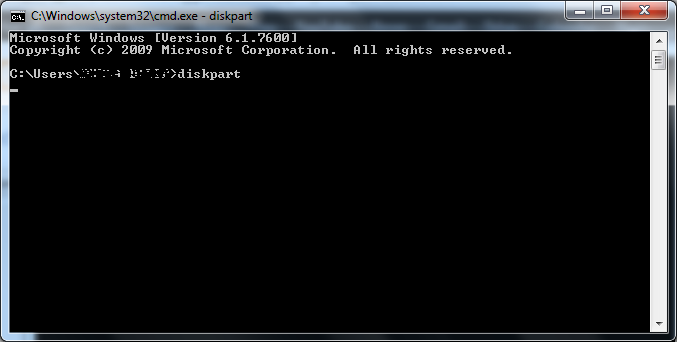
  2. type diskpart and hit enter.
  3. It asks for permission to run as administrator -> press OK
  4. Now type list disk.It shows available disks.
  5. Now select your USB drive by this command. select disk # (# = no of your USB Drive)
  6. now enter the command attributes disk clear readonly

cmd diskpart


diskpart window


Happy data transfer to your USB drives.... :)


ThankYou :)


Tuesday, 25 February 2014

Send Files or Messages to any computer in a network

Many of us have computers with us and also with our friends.Most of us share music,movies,photos from tour with each other.

Each time we are going to copy them to a USB Drive and give it to other people for them to copy even if they are adjacent to us.But some times they get affected by virus and gets converted into shortcuts.We have already discussed how to retrieve files from USB drive with shortcuts.

But each time copying them to USB Drive and giving to other person takes lot of time.Instead we can share the files to a particular computer in a network with a single click.

IP Messenger is a software that lets you share files in a network with very high speed as similar to USB Drives.It has a very simple interface and best performance.


Click on reply to give reply message


 Suppose you and your friends are on your college wifi,you can send the files to your friends wherever they are.Even this software lets you send messages to chat with people on your network.The messages will be directly delivered to the computer.

Suppose you are on you Home Wifi connection then also you can share the files or send messages.

  • Highlight a computer name and type text and lick on send to send message to computer
  • Click on screen icon at left bottom to capture screen area and send it to another computer
  • Click on dropdown button below refresh button to get options for file transfer
  • It also has the capability to directly send prtscn (Print Screen) screenshots by directly pasting screenshot in text area
Both the parties need to have the software to send the messages or file transfer.

The software size is very less around 592KB.

NOTE : Press Refresh button for every transfer of file (before sending) to avoid Sending Failed message.


Happy File Sharing....!

ThankYou :)

Please share this article with your friends :)

Monday, 17 February 2014

Share single Keyboard and Mouse with all your computers

Most of us love to multitask.And at home or office some of us might be having multiple computers like our brother's or newly purchased laptops etc... We don't like to keep the old computers away for some or other reason.

If we are in college all of us will be in same network and we might want to play prank by operating your friends computer.Even we can write our friends lab examination by doing so.

Synergy is a free and opensource application that lets you share a single keyboard and mouse  between multiple computers.One just need to move the mouse from edge of one display to another to operate other computer.All these computers need to be present in same network.It works in Windows,Mac OS,Linux.
The software has to be installed in all the computers that you wish to connect.
The computer to which your KeyBoard and Mouse are connected works as Server and rest of them are considered to be clients.
You need to have the IP Addresses of all the computers during sharing of devices. And it uses port no 24800 and runs as service.

Features:
  • User has to just move the mouse from one screen to another screen to operate the computer
  • Drag and drop files from one computer to another(Windows & Mac)
  • Shared clipboard
  • Saving of space on your workspace
Happy MultiTasking... :)

ThankYou :)

Sunday, 16 February 2014

Useful Extensions for Google Chrome

These days many of us are hearing that NSA is tracking all our activities on the Web. That means it is collecting our information from the websites and companies. The companies are getting a lot of our information through our web browsers where in they are running a lot of scripts at the backend and also by displaying advertisements. NSA collects the information tracked by all those comapanies and websites. So, to protect yourself from tracking by online websites and companies here are some useful extensions for chrome that helps protect your privacy online

Adblock Plus


This addon will block advertisements in your webpages. advertisements from Youtube also will be removed. So it saves your bandwidth while browsing. you can see the original interface of a website by blocking all the advertisements. By installing this addon websites will not be able to track your activities as you are not going to click on ad's. Very useful when you have low bandwidth because bandwidth will be consumed for loading ad's into the browser.

OneTab

This extension does not provide privacy but it smooths your web browsing experience.OneTab groups all your opened tabs into a single tab displaying links of all webpages. So,when you finish your work with active tab,you can go to OneTab and select your next tab to work on with.

HTTPS Everywhere


This extension encrypts your connection to may websites by Installing HTTPS into your browser. This software is made in collaboration with "The Tor Project" and "Electronic Frontier Foundation".

Ghostery


Ghostery sees the invisible web , detecting trackers,web bugs,pixels and beacons placed on webpages by Facebook,Google and over 500 other ad networks and all other companies interested in user activities.

Do Not Track Plus


Chrome/Firefox/Safari/IE: Whenever you visit a website, data about your visit is likely sent to advertisers, social networks, and other companies. Free browser add-on Do Not Track Plus not only tells you what data is being collected, it also blocks those attempts to share your information.

DoNotTrackMe is not AdBlocker, you have to install AdBlocker to get rid of the ad's.

Have a safe and smooth WebBrowsing..

ThankYou :)

Saturday, 15 February 2014

Pwn2Own : The greatest Hackers Reward Program

Pwn2Own is a computer hacking contest held annually at the CanSecWest security conference, beginning in 2007. Contestants are challenged to exploit widely used software and mobile devices with previously unknown vulnerabilities. Winners of the contest receive the device that they exploited, a cash prize, and a “Masters” jacket celebrating the year of their win. The name “Pwn2Own” is derived from the fact that contestants must “pwn” or hack the device in order to “own” or win it. The Pwn2Own contest serves to demonstrate the vulnerability of devices and software in widespread use while also providing a checkpoint on the progress made in security since the previous year.


Contest dates for the year 2014:

The contest will take place March 12-13 in Vancouver, British Columbia, at the CanSecWest 2014 conference. The schedule of contestants and platforms will be determined by random drawing at the conference venue and posted at Pwn2Own.com  prior to the start of competition.

Rules and prizes:

The 2014 competition consists of three divisions: Browsers, Plug-Ins, and the Grand Prize. All target machines will be running the latest fully patched versions of the relevant operating systems (Windows 8.1 x64 and OS X Mavericks), installed in their default configurations. The vulnerability or vulnerabilities used in each attack must be unknown and not previously reported to the vendor. A particular vulnerability can only be used once across all categories.

The first contestant to successfully compromise a target within the 30-minute time limit wins the prize in that category.

The 2014 targets are:

Browsers:

Google Chrome on Windows 8.1 x64: $100,000

Microsoft Internet Explorer 11 on Windows 8.1 x64: $100,000

Mozilla Firefox on Windows 8.1 x64: $50,000

Apple Safari on OS X Mavericks: $65,000

Plug-ins:

Adobe Reader running in Internet Explorer 11 on Windows 8.1 x64: $75,000

Adobe Flash running in Internet Explorer 11 on Windows 8.1 x64: $75,000

Oracle Java running in Internet Explorer 11 on Windows 8.1 x64 (requires click-through bypass): $30,000

“Exploit Unicorn” Grand Prize:

SYSTEM-level code execution on Windows 8.1 x64 on Internet Explorer 11 x64 with EMET (Enhanced Mitigation Experience Toolkit) bypass: $150,000*

Check Complete details here

CanSecWest Applied Security Conference

ThankYou :)

Sunday, 2 February 2014

Fix all Windows7 problems and errors with a single software

Many users after many days of installation of Operating System will be experiencing problems in the operation of their computers.Even windows7 fall into same category.

The problems might arise due to registry problems, installing toolbars that reduce performance and viruses,malwares that are changing system functionalities.

So,your operating system starts popping up many error messages.Many people will go for reinstalling of operating system.but it is not recommended unless it is the severe condition.

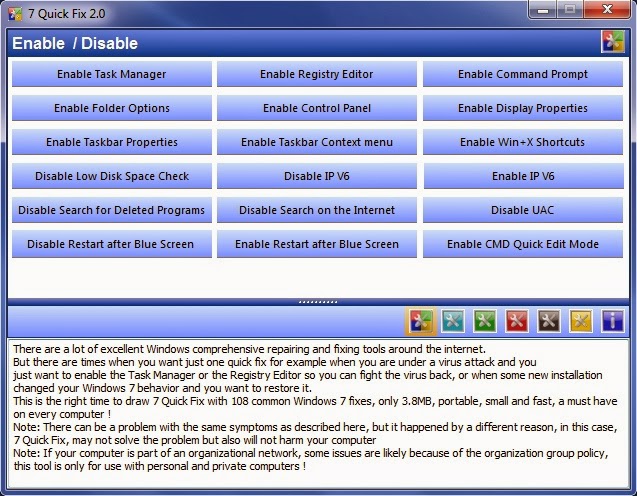
7QuickFix is the tiny software that enables you to solve most common problems with a click of single button.


The tool doesn't require any installation, so that means it is portable. Your Windows registry keys will not change and you can also place 7 Quick Fix on a removable device and run it on any computer.

You can also use this software if your computer is taking lot of time to shutdown or thumbnails are slowly displayed.

Happy Tweaking your system :)

Thank You :)

Saturday, 1 February 2014

Make free calls from your computer to any mobile

Everyone of us make calls daily to our family members,friends and many other persons.

What if we could make free calls to everyone??Yes,you heard it correct only.FREE CALLS.

There is an online service that allows you to make calls for free just as we send SMS from way2sms.

It is NumberTank .

NumberTank allows you to make calls to any mobile(India,US,Canada) for free. You can make calls directly to the mobiles by simply entering the number.But the other party also should be signed up with NumberTank. Receiver need not be connected to internet.

Also there is no unnecessary processing done in connecting your call like the system calling the other person and keeping him in hold and calling you and connecting both of you as done in SITE2SMS.

Receiver receives the call just as you have called from your mobile.


All you need to do is signup with your email id and verify your mobile number. For signing up,you require invite from an existing customer or from the service itself.Existing customer invites are processed within seconds.

You will get 30 minutes of free talktime daily. And the unused minutes will be added upto the next day.
But at any point of time you can have only 100 minutes of talktime in your account.

All you need is your computer with a microphone connected to it!!! :)

Also one doesn't have to recharge their mobiles forever if they could manage with the free minutes of talktime offered by this.

People living out of INDIA can also signup for this and they can call their family members or friends directly without they having internet connection,asking them to come on to skype.  :)

Now that NumberTank has released their app for Android, they have shut down their website to make calls.

NUMBERTANK ANDROID APP

Please share the post with your friends.... :)

Happy Free Calling!!! :)

ThankYou :)

StumbleUpon's New Initiative 5by

StumbleUpon has come up with a new initiative of offering the best videos on the internet to stumble for you called 5by .

5by is the personalized,curated video application that lets you go through the best videos in your favorite category based on time and mood. You definitely become addicted to the videos... :) . It is awesome and free. :)

Now you can get loads of entertainment and lot of learning too!!!


Now this has come into Play Store and Itunes also.

5by on Desktop

DOWNLOAD FROM PLAYSTORE

DOWNLOAD FROM ITUNES

Thank You :)

Prank to Restart your Windows Computer repititively

We all know that we can shutdown or restart any computer by executing simple run commands.
But how would it be if we are going to use the same commands to do something unnatural altering your computer's performance.

We are going to use the run commands to play a prank on a computer to automatically shutdown after booting or restart after booting.

We achieve this by writing a simple batch file. A Batch file (filename.bat) is a file  containing instructions that are directly executed on command prompt. So we keep the instructions that we want to execute in a simple notepad file and going to save it with some file name. Now our work is to place the file into startup folder of your windows operating system.

Steps to follow:

  1. Open notepad
  2. copy and paste the follow the following code in bold letters
@echooff
shutdown -r -f -t 300 -c "Message"

In the above code -r stands for restarting, -f for force shutting down the computer, -t for time in seconds, -c for comments where in you can embed your own message to surprise your friend.

Instead of -r attribute, -s can be used to shutdown the computer.

Now save the file as shutdown.bat and place it in the startup folder of your computer. The items in startup items will be run automatically whenever the computer starts.

DOWNLOAD THE FILE FROM HERE

Startup item locations:

  • WINDOWS XP : C:\Documents and Settings\(user)\Start Menu\Programs\Startup
  • WINDOWS 7 & 8 : C:\Users\(User-Name)\AppData\Roaming\Microsoft\Windows\Start Menu\Programs\Startup

To remove that startup item you may have to go to same folder and delete it. So, be careful when giving the time attribute and give appropriate time so that you can navigate to that folder and remove it. Else you have to restart your computer in safe mode and remove that file.

Thank You :)